Tools is a group of back office management functions to help you to do certain tasks that are explained below:
Change Prices
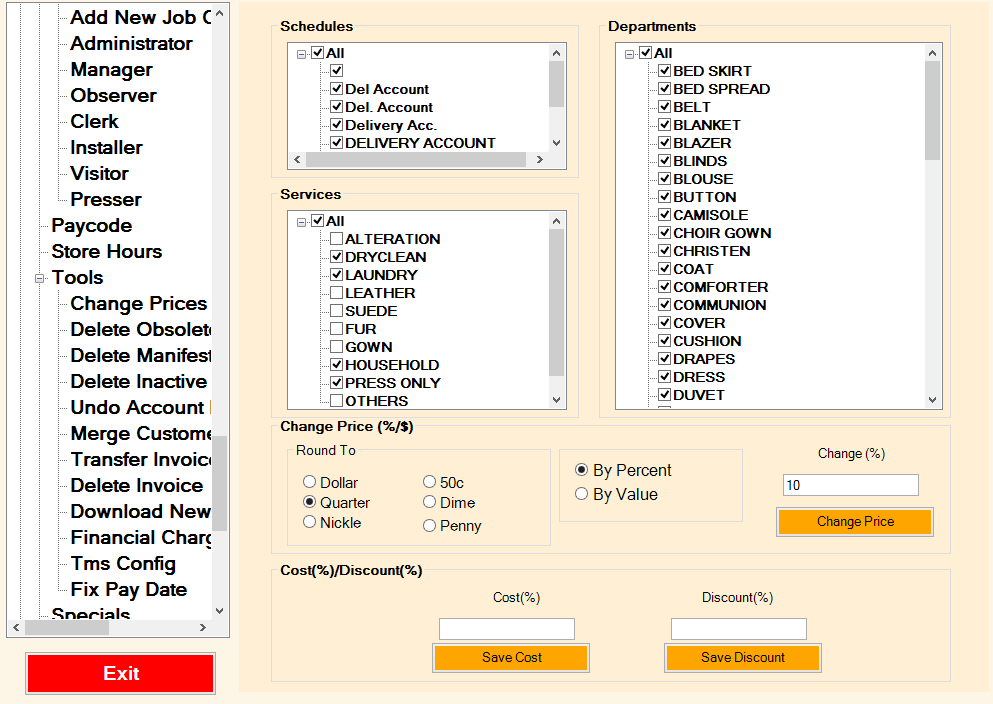
Use Change Prices to adjust prices, apply discounts or setup cost auto for selected Schedule, Service or Department, Follow steps below:
- Check mark the desire Schedule, Services and Departments. You may select All to check mark all.
- Enter the $ value or % into Change field. If you like to decrease the price enter negative number (i.e -5%).
- Select the rounding to option
- Select by value or % option to increase or decrease the prices.
- Select Change Price to apply changes.
If you wish to enter cost for selected items, enter the cost % and select Save Cost.
If you like to apply certain discount to certain items, check mark the items, enter discount%, and select Save Discount.
In the following example, Selected Dryclean, Laundry, Household, adn press only items are increased by 10% and rounded to closed Quarter.
Delete Obsolete Transactions
TMS uses Microsoft SQL database engine for transactions. There could be performance issues as the database grows. If you feel performance drop on your system, use this tool to delete the obsolete transactions that are no longer required.
You should keep 1-2 years transactions for audit purpose, but delete checked out, invoice with no balance transactions to make sure your system is running smooth and error free.
Use the following steps to perform this function:
- Make sure to backup database 1st.
- Select desire store from Store list (top left)
- Select the ending date (default is one year)
- Check mark delete invoices with balance and/or invoices that are still in (Only if you like to delete old invoices with balance and/or In status )
- Enter password 11182000yiyi
- Select Start to Delete
- Deleted records are displayed on the status window.
- Depending on the size of your database this process might takes few hours. Make sure to do this operation after store hours and do not interrupt the process.
Delete Manifest
Use this function to delete manifest transactions that are saved through Manifest process. Select manifest# from drop down menu.
Delete Inactive customers
Use this function to delete customers who have not used your services since selected date.
Enter password 11182000yiyi to confirm this.
Undo Account Payment
Use this function to delete undo a payment that was applied to charge customer by mistake.
- Enter customer#
- Enter invoice#
- Select Search
- Check mark the payment and invoices that was applied to
- Press Undo Payment
Merge customers
This feature is used to merge 2customer’s profile and related transactions into one. The system merges transactions; points collected and related preferences into the older customer id.
(e.g if two customers 110, and 1202 are selected for merge function, all transactions from customer id# 1202 are merged into customer 110).
Download new update from internet
If you are on our support program, you may use this link to download the latest update from out website which is always available on the following link which is password protected.
Password is sent to customers who are on our support program or their system is still under initial support program. For additional information on CSI support program, please visit our website.
When installing new update always start with your server 1st. Once server is updated, stations can download the update auto. Always check the website for latest news and upgrades.
http://www.computersystemsint.com/download/tms_update.exe
Financial Charges
This tool is used to make financial charges like interest on overdue invoices for charge customers auto. Use the following process to make the charges:
- Select one or more customers from the list or enter customer name, id into the search option and select Search to find the customer.
- Select All if you like to charge all customers listed in the search screen.
- Enter memo that will be printed on the statement for the charges (i.e Interest charges)
- Enter % amount that you like to apply to the invoices that overdue base on select Days.
- Select Process to make the charges.
- The final result is shown on the screen, press Print to make a copy for audit purpose.
Please note, system will create a debit note into customer profile, and will be shown on the statement.
License
TMS license is required to be renewed once a year. The users get prompted 2 weeks in advance to make sure there is enough time to do this process. Please don’t ignore this warning, and renew your license before it gets expired.
You may simply email the registration code, or call your local support to renew your license.
This is a required process to make sure we are in touch with our customers at least once a year, prevent illegal copy, and make sure the system is running properly.
Use this tool to view your license expiry date, add additional client licenses or renew your license.
Backup Database
See backup database section under Misc for additional info.
Index Database
As your database grows, you may find system performance drop in some systems. Use this process to speed up your system and keep your system running pr
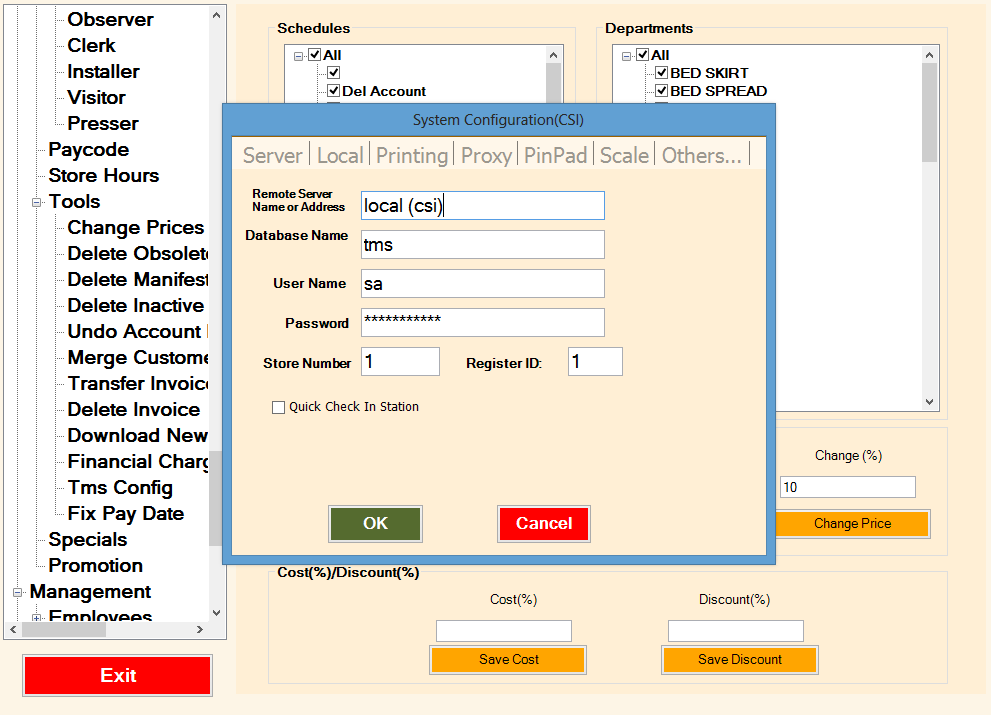
TMS Config
TMS configuration file is used to configure the Server/Client Computer on how to access TMS database, and the following hardware devices/processes:
- Invoice, Tag, Tracking Tag, Narrow and Wide report printer.
- Proxy set up for Credit Card Processing program
- Debit Pinpad
- Digital Scale for Laundromat operation
- Cash Drawer
- Pole Display
- Conveyor
- Camera
- Transaction Overlay Printer
For additional information on how to setup TMS configuration file, see TMS Installation guide.
Specials
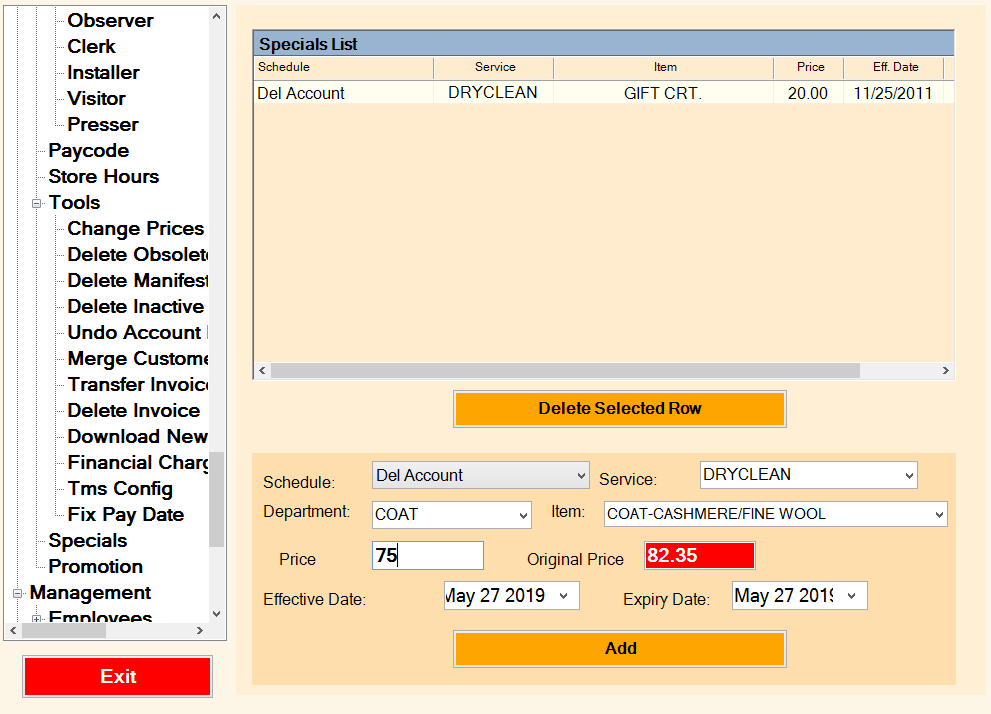
Specials tool is used to create a special price for a selected item from a Schedule, Service, and Department within certain period.
Use the following process to create such Specials.
- Click on the Schedule from schedule drop down menu.
- Click on the desire Service (i.e Dryclean)
- Click on the Department (i.e Pants)
- Click on the Item that is on Special
- Enter The Special Price.
- Enter the Start/End Date. Please note after Expiry date, the Special item price will be reset back to regular price.
- Use the item from Special List on the top screen to delete the specials.
Redeem Points
See eMakreting section for additional info.
Customer Classification
See eMakreting section for additional info.
Comments
0 comments
Please sign in to leave a comment.