Follow steps below to add a new tax schedule:
- Go to Management -> System.
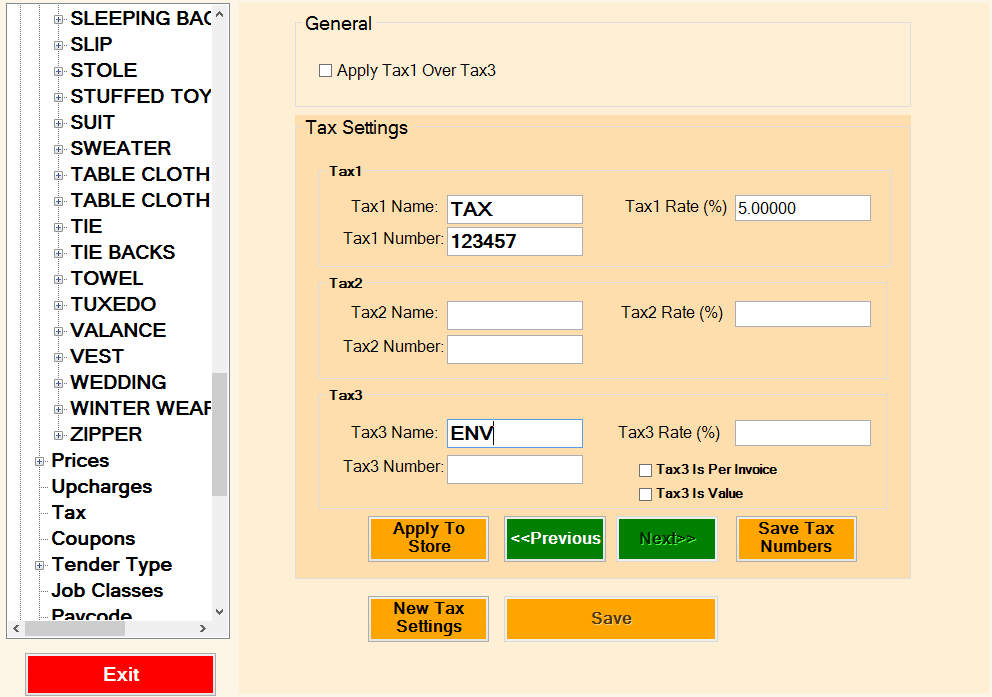
- Select New Tax Settings
- Enter new Tax values. You may add up to three different taxes. Tax3 is usually used for environmental fee. You may apply this tax as a value and as per invoice.
- Select Save
- Select Apply to Store
- To enable/disable taxes on certain services, please see the Note below.
- Some States/Provinces require Tax number to be printed on the invoice. Enter your tax number in Tax number field.
- Some State/provinces must add Tax1 on Tax3, in that case enable option 'Apply Tax1 over Tax3'.
- Select Next or Previous to view other tax schedules.
- After new tax is added, make sure to exit TMS, and logon for new tax to be applied.
Note
- If new tax is not applied, go to Management -> System -> Services -> Select Tax column -> remove check mark on all services. Press Save.
- Add check mark on all services that Tax is supposed to be applied to. Press Save.
- Exit TMS, and logon.
- If certain items are not taxable, go to management -> System -> Departments/Items -> Select Department -> Select Update Items -> Select Items -> Remove check mark on tax option.
Comments
0 comments
Please sign in to leave a comment.